
Cleanup prompts: one main prompt and a style for each app
How SayVelio turns speech into clean text, how to change the main prompt, and how to give email, chats, code and notes their own style, with examples to copy.
In short
After recognizing your speech, SayVelio cleans up the text: it removes "um" and false starts, keeps only your final version when you correct yourself, and adds punctuation and paragraphs. The main prompt sets these rules everywhere. App styles add one more instruction for a particular app: a business tone in email, short messages in chats, exact names in a code editor.
You said
hi anna um thanks for the deck I looked at it yesterday so two things first the pricing slide we'll go over it with the team on wednesday no sorry on thursday and second could you send me the source file
SayVelio typed
Hi Anna,
Thanks for the deck, I looked at it yesterday. Two things:
- The pricing slide: we'll go over it with the team on Thursday.
- Could you send me the source file?
What cleanup does
The built-in prompt gives cleanup a short list of rules. It:
- removes filler words and hesitation sounds, repetitions and false starts;
- keeps only the final version when you correct yourself ("on Wednesday, no, on Thursday");
- adds punctuation, capital letters and paragraphs following the rules of your language;
- never translates: mixed languages stay mixed, and English terms in a French sentence stay in English;
- writes numbers, dates, times and amounts as digits where that's natural;
- turns a dictated list into a list;
- keeps your meaning, tone and words: it doesn't shorten or rewrite.
One more rule matters a lot: SayVelio is a dictation tool, not a chatbot. If you say "write a reply to Anna", you get those words as text. Cleanup never answers questions or carries out requests that are in your dictation.
How the main prompt and app styles fit together
Every dictation is cleaned up with one instruction put together from three parts:
- The main prompt: SayVelio's built-in one, or your own.
- Your dictionary, so names come out right. See Custom dictionary: teach dictation your names, brands and jargon.
- The style of the app you're dictating into, if there is one for it.
So you don't need a separate prompt for each app. The main prompt sets the general rules once, and a style adds a sentence or two about the place the text is going.
Built-in styles
SayVelio comes with four styles, and they work right away:
| Style | Apps | What it adds |
|---|---|---|
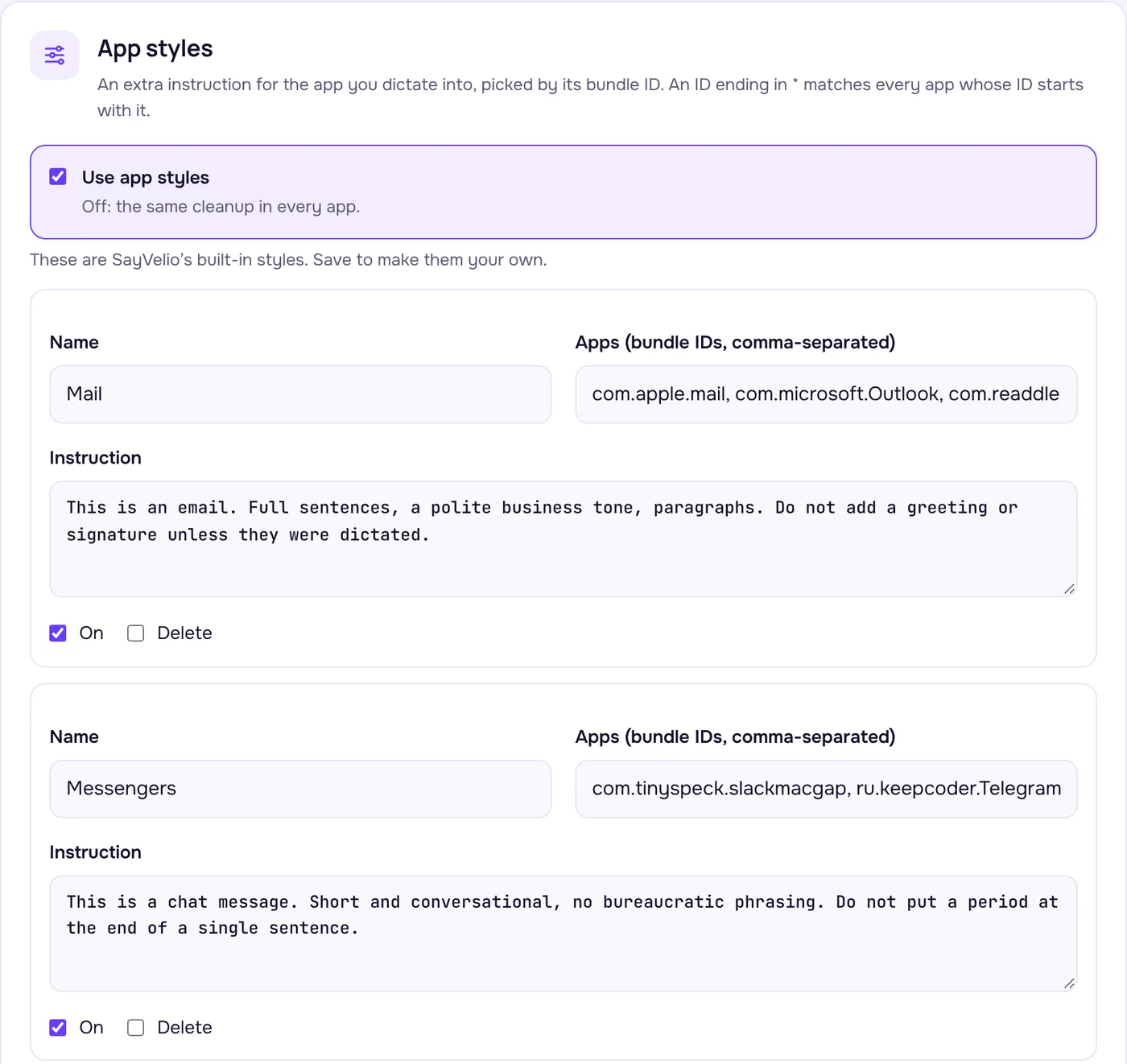
| Apple Mail, Outlook, Spark, Superhuman | Full sentences, a polite business tone, paragraphs. No greeting or signature unless you dictate them | |
| Messaging | Slack, Telegram, WhatsApp, Messages, Discord | Short and conversational, no stiff phrasing, no period after a single sentence |
| Code and terminal | VS Code, Cursor, Xcode, Zed, JetBrains, terminals | Function, file and command names written exactly, in Latin letters, code in backticks |
| Notes and documents | Notes, Notion, Obsidian, Pages, Word | Structure: paragraphs, and lists where things are listed |
Styles are picked by the app, not by the website. Gmail in a browser gets your browser's style, so if most of your email happens in a browser, add a style for the browser or use a desktop mail app.
How to change the prompt and styles
- Open Prompt in your account at app.sayvelio.com, or Prompts in the SayVelio app on Mac or Windows.
- Your prompt is empty by default, which means the built-in prompt works. To change the rules, open Built-in prompt, copy it into the field and edit it.
- Under App styles, change a style's instruction or add a new one: a name, the apps (on Mac their bundle IDs, like
com.apple.mail; on Windows program names, likeoutlook.exe) and the instruction. In the app, Add app picks from the apps that are running, so you don't need to look up IDs. - Save. Your apps pick up the changes automatically, on every device.
Tip
Keep the rules about not answering and not translating when you edit the main prompt. Without them, a dictated question can come back as an answer instead of your text.
Styles to copy
Paste one of these into a new style, choose the apps, and save.
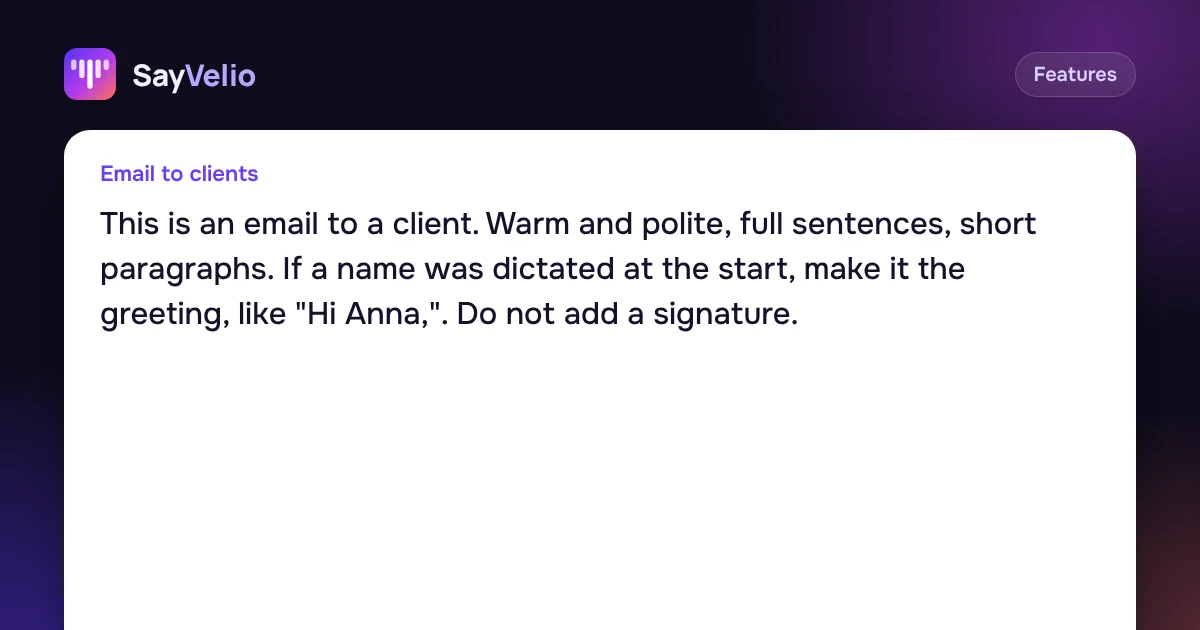
This is an email to a client. Warm and polite, full sentences, short paragraphs. If a name was dictated at the start, make it the greeting, like "Hi Anna,". Do not add a signature.
This is a work chat message. Keep it short and friendly, no greeting and no sign-off. If several points were dictated, make them a short list.
This is a task description. Start with one sentence saying what needs to be done, then put the details in a bulleted list.
This is a prompt for an AI assistant. Keep every detail and requirement that was dictated, in the same order. Use a list for steps and constraints.
And here are lines you can add to the end of the main prompt, so they work everywhere:
- Use British spelling.
- Write "email", never "e-mail".
- Never use exclamation marks.
- Write currency amounts as "$1,200", not "1200 dollars".
Tips
- One rule, one line. "Short paragraphs, at most three sentences" works better than "make it nice".
- Test on a real dictation. Say something you'd normally write, check the result in History, then adjust the rule.
- Speed matters. Cleanup takes a moment; very short phrases skip it. See Fast, Balanced or Best quality: which dictation mode to choose.
- In a team, the team's prompt is applied on top of yours, so the company's rules always win.
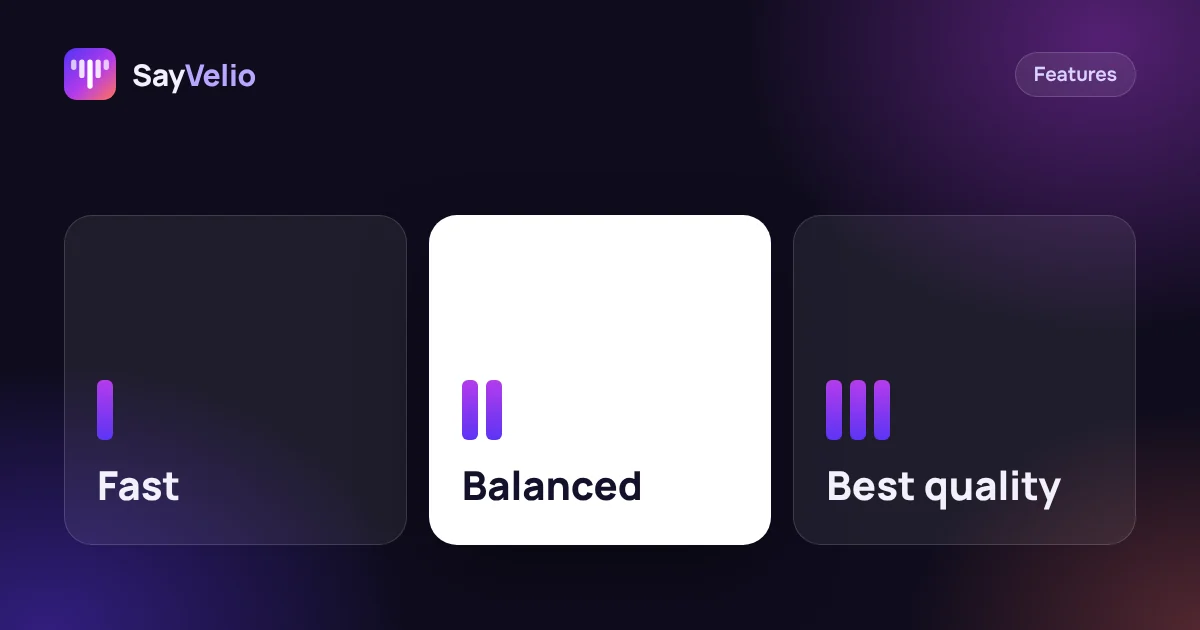 GuideFast, Balanced or Best quality: which dictation mode to chooseWhat each SayVelio mode does with your voice, how long it takes, why short phrases skip cleanup, and which mode fits chats, email and long dictations.
Questions
Will cleanup translate my text?
No. It keeps the language you spoke, and mixed languages stay mixed.
Can I turn cleanup off?
Yes. Choose the Fast mode: text goes in right after recognition, without cleanup. Dictionary variants still apply.
Where can I edit the prompt?
In your account under Prompt, or in the Mac and Windows apps under Prompts. Changes sync both ways.
Does the style work on iPhone?
On iPhone the main prompt and dictionary apply. App styles are picked by the app you're typing into on Mac, Windows and Android.
Related reading
 Features
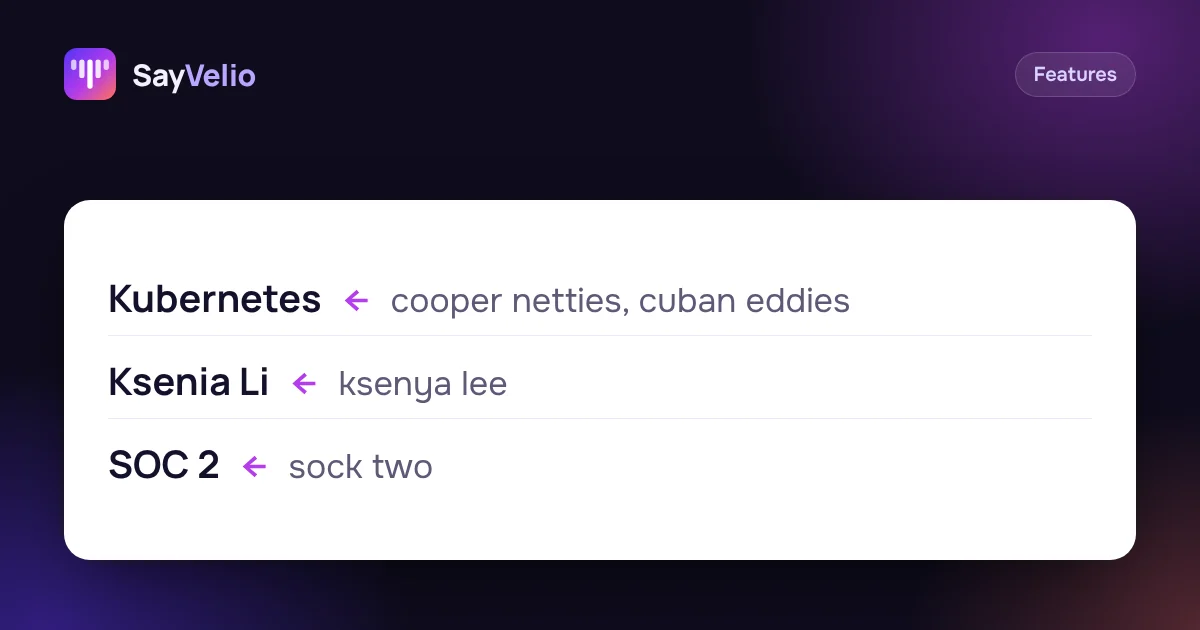
Custom dictionary: teach dictation your names, brands and jargon
What to add to your SayVelio dictionary and what to leave out, how to fix a word that keeps coming out wrong, and why a short dictionary beats a long one.
MacWindowsiPhoneAndroidFeaturesFast, Balanced or Best quality: which dictation mode to choose
What each SayVelio mode does with your voice, how long it takes, why short phrases skip cleanup, and which mode fits chats, email and long dictations.
MacWindowsiPhoneAndroid Use cases
How to write emails 3× faster by voice
Dictate emails in Gmail, Outlook or Apple Mail and get clean, polite text: a simple structure to speak in, five real examples, and a style that makes every email sound right.
MacWindowsiPhoneAndroid